
Email Setup: SMTP
2026-05-23SMTP (Simple Mail Transfer Protocol) is the universal standard for sending email. Use SMTP when you don’t sign in to Haikult with Google, or when you want invoices to be delivered through a specific server — your domain’s mail host, Outlook, SendGrid, Mailgun, or any other provider. If you do use Gmail OAuth, see Email Setup: Gmail (OAuth) instead — it’s simpler and more secure for Google accounts.
Configure your SMTP server
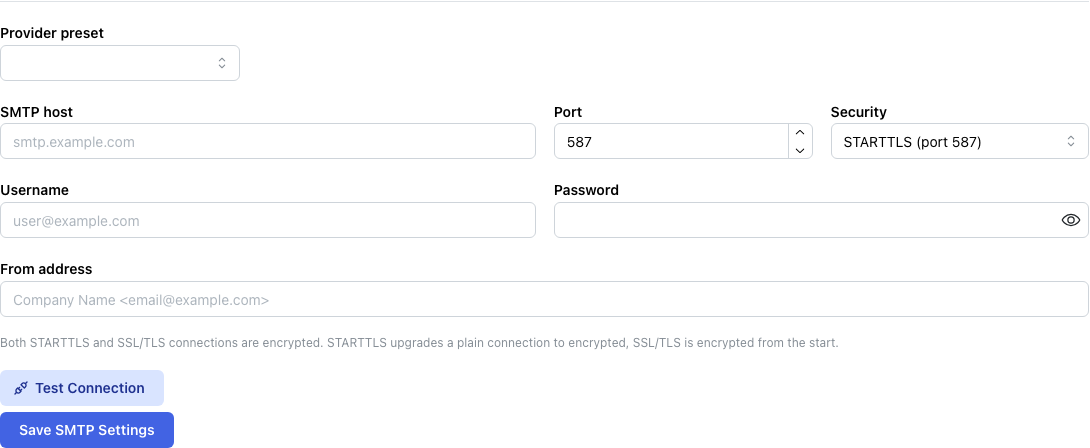
Open Settings → Email Provider. The page shows the SMTP form directly. If you originally signed in with Google, switch to the SMTP option first.
Start with the provider preset dropdown — picking Gmail, Yahoo Mail, Outlook/Hotmail, Office 365, SendGrid, or Mailgun fills in the server address, port, and security settings for you. Choose Custom if your provider isn’t listed.
Then fill in the remaining fields:
- Host — the SMTP server address (for example
smtp.gmail.com). - Port — typically 587 (STARTTLS) or 465 (SSL/TLS). The preset usually gets this right.
- Security — choose between STARTTLS, which upgrades a plain connection to encrypted, and SSL/TLS, which is encrypted from the very first byte. Use whatever your provider documents.
- Username — usually your full email address.
- Password — your account password, or an app-specific password if your provider requires one (Gmail and Yahoo do).
- From address — the sender displayed to recipients, for example
Company Name <you@example.com>.
Test the connection
Click Test Connection before saving. Haikult tries to reach the server, authenticate, and report the result. If the test fails, the error message points to the most likely cause — wrong port, invalid credentials, or a security mismatch.
Save and start sending
Once the test passes, click Save SMTP Settings. From that point on, every invoice you send goes out through your SMTP server.
See also: Email Setup: Gmail (OAuth).