
Due Dates and Payment Terms
2026-05-23Most invoices need to communicate when payment is expected. Haikult tracks a due date for every invoice and lets you configure how that date is calculated by default. This article covers the due date field on the invoice form, the default-calculation setting, and how to display payment terms on the generated PDF.
The due date field
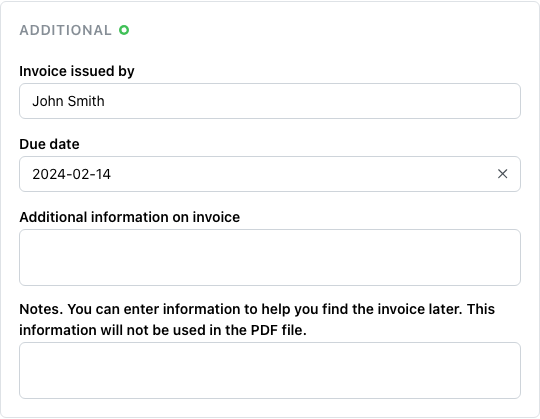
The due date lives in the “Additional” section of the invoice form, next to the issuer and notes. Whenever you create a new invoice, Haikult pre-fills this field based on your default-due-date setting (see below). You can always override the value for an individual invoice — either to delay payment for a specific customer or to clear the date entirely if no due date applies.
Internally, the due date is stored as a regular calendar date. Haikult uses it to flag overdue invoices in the invoice list, so keeping it accurate helps you spot late payments at a glance.
Setting a default

The default due date is configured on the Invoice settings page. Four modes are available:
- None — no due date is set automatically; you fill the field manually each time.
- Days from invoice date — adds a fixed number of days to the invoice date (30 by default). This is the most common choice for net-30, net-14, and similar terms.
- Day of month — picks a specific day of the month, such as the 10th. If the invoice date is past that day, the due date jumps to the same day of the following month.
- End of month — the last day of the invoice’s month.
Whichever mode you choose, the result is just a pre-filled value — you can still adjust it on individual invoices.
Showing payment terms on the invoice PDF
The due date is stored with the invoice but doesn’t appear on the PDF automatically. To print a line like “Please pay by 2026-06-22” on the document itself, use the Additional information field on the invoice. You can type any text there manually, or have Haikult fill it for you using the Additional Information Program feature.
The program has access to a dueDate variable, so a small snippet like:
// AUTO
if (dueDate) {
  globalThis.result = `Please pay by ${formatDate(dueDate)}`;
}
will keep the payment-terms line in sync with the due date on every invoice. For a full walkthrough, including language-specific text and combinations with payment methods, see Additional information programming.