
Brand Customization
2026-05-24Haikult lets you brand your invoice emails — and the invoice PDF previews — with your own logo and color palette. Once configured, the values flow through to every email template that supports them, so a single update changes the look of every invoice you send.
Logo
Open Settings → Brand to upload your company logo. Pick a PNG or SVG with a transparent background for the best result. The logo is exposed to email templates as {{logoUrl}}, and the With logo templates render it at the top of the message. You can replace or remove the logo at any time — the change applies to invoices you send afterwards.
Brand colors
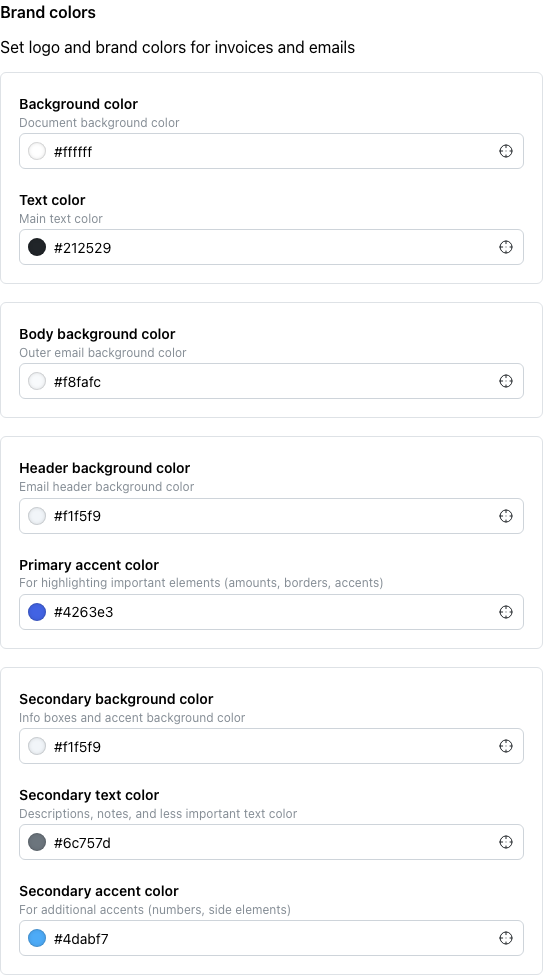
Below the logo, the brand color editor lets you set the palette used by HTML email templates: primary and secondary colors, text and secondary text, and background colors. As you adjust a color, the email preview on the same page re-renders so you can see the effect before saving.
The colors are exposed to email templates as {{brandPrimary}}, {{brandSecondary}}, {{brandText}}, {{brandTextSecondary}}, {{brandBackground}}, {{bodyBackground}}, and {{backgroundSecondary}} — see Email Templates and Variables for how to use them in a custom MJML template.
When the changes take effect
Brand settings are read at send time. The invoice you send next will use the current logo and color values. Already-sent invoices keep whatever branding they were sent with — there’s no need to resend.
See also: Email Templates and Variables.