
Batch-Edit Multiple Invoices
2026-05-24When you need to act on many invoices at once — send them, save PDFs to Google Drive, mark a stack as paid, change amounts — the Multi-Edit wizard runs the operation in bulk with a single review step.
Opening the Wizard
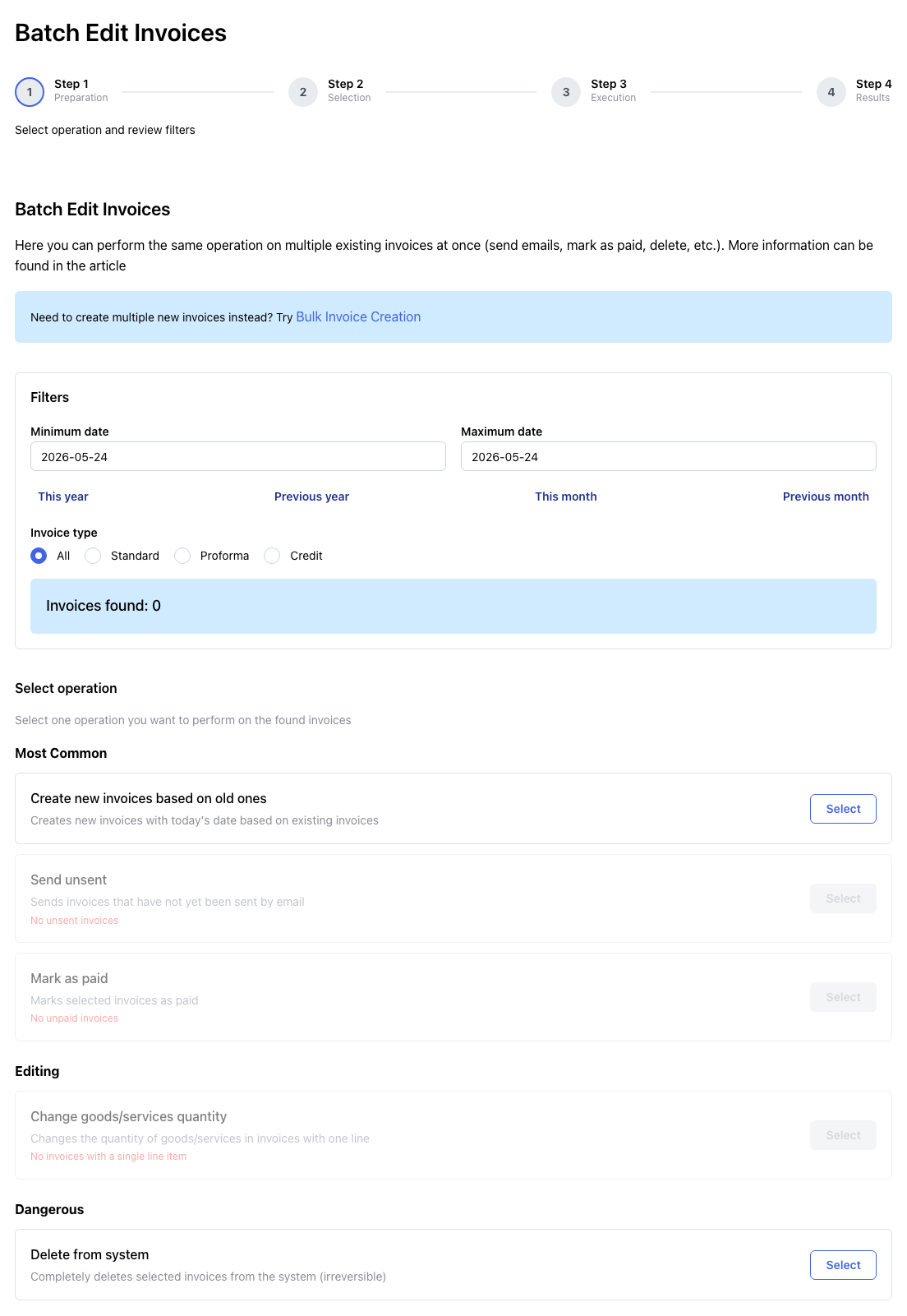
From the invoices page, click Multi-Edit. The wizard opens at /invoices/multi-edit.
Step 1 — Choose an Operation and Filter
The first step shows summary counts (total, unsent, unpaid, etc.) and lets you filter the invoice list by date range and invoice type. Pick the operation you want to run:
- Create new invoices in bulk — opens the Create-from-Calendar flow.
- Send unsent invoices — emails the PDF and links to clients.
- Mark as paid — sets the paid flag and (optionally) a payment date.
- Save PDFs to Google Drive — uploads to your Drive folder.
- Delete from Google Drive — removes the PDF copy (the invoice stays in Haiku).
- Change amount — applies a percentage or fixed adjustment to line items.
- Delete from system — permanently removes the selected invoices.
Step 2 — Select Invoices
The filtered list appears with checkboxes. Tick the rows you want to include, or use the header checkbox to select all. Locked invoices cannot be edited or amount-changed and are excluded automatically for those operations.
Step 3 — Configure the Operation
Each operation has its own configuration form:
- Send: choose the email template, optionally override subject/body.
- Mark as paid: pick the payment date.
- Save to Drive: confirm the target folder (
Haiku.lt/Invoices/YYYY/by default). - Change amount: enter a percentage or fixed delta and choose whether to include VAT.
- Delete: confirm.
Click Apply to run the operation. A progress bar shows each invoice as it is processed.
Step 4 — Results
A summary lists succeeded and failed rows. Failures show the reason (locked invoice, missing email, Drive auth expired, etc.) so you can fix and re-run.
What Cannot Be Batch-Edited
- Locked invoices — locking is a deliberate signal that an invoice is final. Unlock individually first.
- Buyer or seller details — these are per-invoice and not exposed in bulk to prevent accidental data overwrites.
- Invoice numbers and series — managed via invoice series and numbering.
Interaction with Auto Programs
If you use additional information programming, any program marked with // AUTO at the top will re-run during batch edit and recompute the additional-info field for each invoice in the batch. This is the right place to re-evaluate dynamic content (e.g. updated payment terms) across a whole month of invoices in one go.